

GPT IMAGE 2.5 IN TAKEWEAVE
Turn a clear idea or reference image into a focused visual direction, then refine the result until it is ready for review.
 IMAGE MODEL

Check current availability in Studio
Inputs, controls, and the final Credits Quote are confirmed in Image Studio before generation.
FROM ONE REFERENCE TO A CLEARER VISUAL DIRECTION.
Start with a product, character, scene, or visual reference. Describe what should stay, what should change, and where the new image will be used.
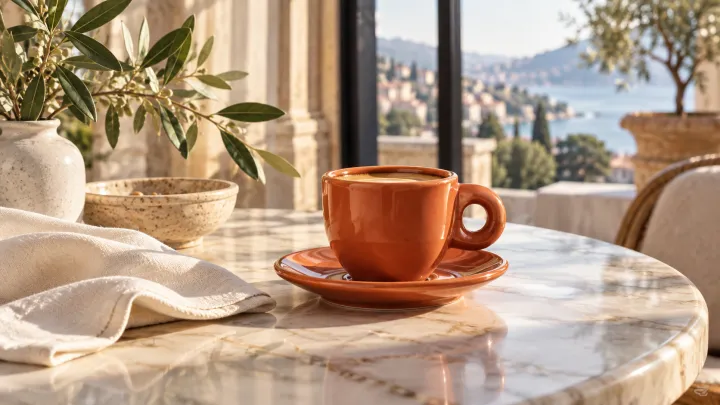
Example Input
- Product reference
- Character reference
- Text brief or reference image
Visual Direction
- Scene, lighting, and composition change
- Setting, pose, and atmosphere change
- Style, layout, and visual treatment
Output Delivery
- Campaign-ready visual direction
- New character scene variation
- Comparable image variations
GPT Image 2.5 helps you explore and refine visual directions. Review every result before using it in a public, commercial, or identity-sensitive context.
WHEN GPT IMAGE 2.5 FITS THE BRIEF
Choose GPT Image 2.5 when you need a practical image starting point, a controlled reference-led variation, or several visual directions to review.
Best for
 Product and lifestyle imagery
Place a product into a new environment, lighting setup, or campaign composition while keeping the product as the visual focus.
- Campaign and social concepts
Explore campaign moods, social post directions, launch concepts, and visual treatments before committing to a final production route.
- Reference-led image variations
Start from an approved visual reference and request a focused change to the scene, styling, composition, or atmosphere.
- Character and scene development
Extend a character, portrait, illustration, or scene idea into new moments while reviewing identity and continuity across the results.
AVOID WHEN
 Exact packaging, labels, and legal copy
Generated text, logos, labels, prices, and required disclosures must be checked and finished in a production design workflow.
- Identity-critical images without review
Do not publish a result without checking likeness, hands, accessories, age cues, and other identity-sensitive details.
- Pixel-exact final artwork
Use a dedicated design or production tool when the deliverable requires exact typography, layout grids, print specifications, or editable source files.
Compare results for your own task; this is not a permanent leaderboard.
INPUTS, CONTROLS, AND ROUTING
Describe the result you need, add the reference material you are authorized to use, and review the options exposed by the active Image Studio route.
Supported Inputs
Supported Outputs
Eligible Controls
Availability Regions
GPT Image 2.5 availability, supported references, controls, and output options may vary by account, region, provider route, and selected settings. Image Studio shows the options available for the current job.
When a Template supplies locked composition, ratio, duration, or visual structure, those fields remain controlled by the Template. The user edits only the input fields exposed in Image Studio.
COSTS, RIGHTS, AND REVIEW BOUNDARIES
Review the active route and final Credits Quote before generation, and make sure every supplied reference can be used for the requested transformation.
Orchestrator Cost Rate
The final Credits Quote depends on the active route, image quality, size, output count, and other settings exposed by Image Studio.
Commercial Use & IP Rights
Upload only images, products, people, artwork, and brand materials you are authorized to use, transform, and publish.
Hard Generation Limits
Review identity, hands, product geometry, colors, text, logos, labels, composition, and small factual details in every generated image.
A final, precise Credit quote always appears in Studio before triggering generations.
USE GPT IMAGE 2.5 IN YOUR TAKEWEAVE WORKFLOW
Choose between automated routing and manual model selection inside TakeWeave.

START WITH AUTO ROUTING
Describe the image you need and add the references you already have. Auto can recommend an available image route; review the selected model, settings, and Quote before confirming.

SELECT GPT IMAGE 2.5 DIRECTLY
Open Image Studio and choose GPT Image 2.5 when it is available. Add the source material, describe the change or composition, review the Quote, and confirm generation.
START FROM A TEMPLATE
Choose a Template with a visual structure you want to reuse. Replace the exposed subject, product, scene, or description, then review the locked fields and final Quote in Image Studio.
CONTINUE FROM AN ASSET
Use a saved image or a previous Take as the next reference. Keep the change request focused so each iteration is easy to compare and review.
REVIEW AND SAVE RESULTS
Compare the generated results, save an approved image to Assets, download it when needed, or use it as the reference for another Image Studio iteration.
The workspace model selector and real-time quote preview confirm your final active route before generation.
SUPPORT & RELATED SYSTEMS
Got questions? Browse common scenarios or explore adjacent models.
It is suited to product visuals, campaign concepts, character scenes, reference-led variations, and focused image editing when the result will be reviewed before use.
Yes. Add an image you are authorized to use, then describe what should stay and what should change. The available reference slots depend on the active Image Studio route.
Yes. Save the result to Assets or use the result as a reference for the next Image Studio task.
Yes. A Template can provide the visual structure and expose the fields that can be replaced. Template-locked fields remain unchanged.
Treat text, logos, labels, prices, and legal copy as review points. Finish exact typography and production layout in a dedicated design workflow.
Only when the active route exposes the ratio control. A Template may lock the ratio and other structural fields.
Image Studio calculates and displays the final Quote after the route and selected output settings are known, before you confirm generation.
Yes. Provider, region, account, and service conditions can affect the routes and controls shown in Image Studio.