

AI video prompting
How to write Seedance 2.0 prompts
An orange rolls to the edge of a fruit stall. The seller catches it with her right hand. You can picture that shot before you pick a lens or describe the light. Start your Seedance 2.0 prompt with the action, then tell the camera where to be.
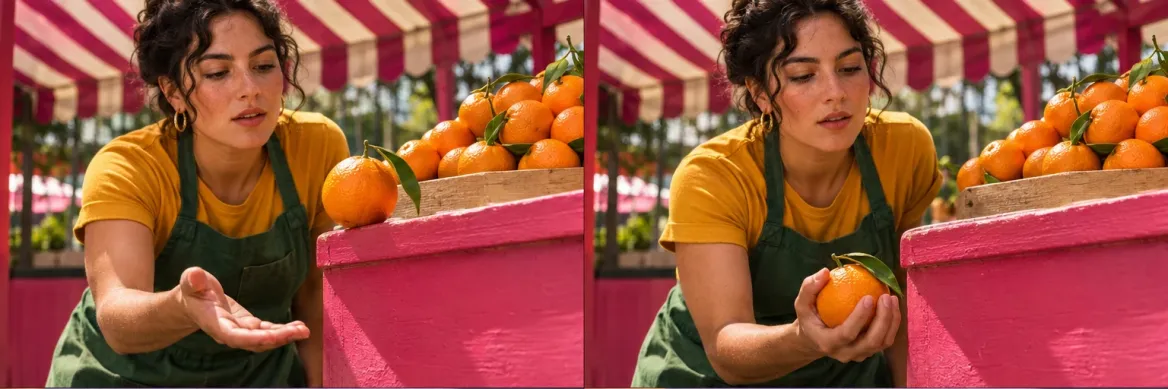
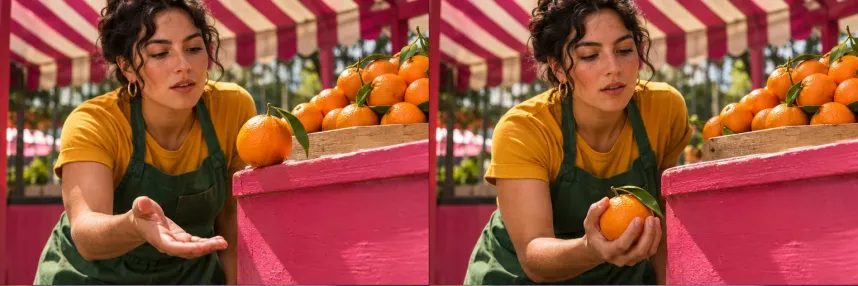
Start with a scene you can picture:
[Subject] performs [one main action] in [setting].
The camera [movement or fixed position], framing [what the viewer sees].
Use [lighting and visual style].
If references are attached: use [reference] for [specific role].
Include details that change what the viewer will see. For example, describe the direction of the light if it matters to the scene.
These are sample prompts we wrote, not results from test runs. Reference controls and attachment labels vary by platform; match the wording to the inputs available in your editor.
Choose your starting point
Are you starting from text, a first frame, or a reference you want the model to borrow from?
| Starting point | What your prompt needs to explain | What to check in your editor |
|---|---|---|
| Text only | The subject, setting, action, and framing | That you are using a text-to-video mode |
| An image used as the opening frame | What moves from that starting composition | That the image is assigned as the first frame |
| Images used as references | Which image supplies the character, object, location, or visual style | That the selected mode accepts those reference roles |
If you have two photos but see only one upload slot, check what the slot is for. A first-frame slot sets the opening picture. It doesn't give you a separate place to assign another photo as the setting. For the fruit stall shot, you can start with a photo that already shows the seller at the counter and describe the catch. Use the two-reference example below only if your editor offers both inputs.
You can plan a single shot or a sequence after choosing your inputs. For a sequence, describe each shot and where the cuts occur. For broader image-to-video planning, see our image-to-video prompt guide.
1. Write the action before adding the look
Cross out "cinematic," "stunning," and "epic" for a moment. Can you still tell what the subject does? If not, write that action first.
Text-to-video example: a street market
A fruit seller in a green apron stacks oranges on a market stall.
One orange rolls toward the edge, and she catches it with her right hand.
The camera stays at counter height in a medium shot.
Bright striped awnings cast soft colors across the stall in morning light.
What to replace: the seller, the object, and the small action. Keep the camera description if the same view suits your scene.
The rolling orange and the catch give the scene a short action to follow. To change this into a florist scene, replace the seller with a florist and the orange with a flower stem slipping from a bouquet. Update the stall details to match.
For a wider introduction to subject, action, and scene planning, use the AI video prompt guide.
2. When you have a first frame, describe what changes
Once the photo sets the opening frame, use the prompt for what happens next and where the shot ends.
First-frame example: a sneaker close-up
Input: a close-up photo of a sneaker resting on a bright blue bench, with a hand beside it. Assign that photo as the first frame in an editor that supports the mode.
Starting from the uploaded first frame, the hand lifts the sneaker by its heel
and tilts it to reveal the sole. The camera remains fixed in the same close-up.
The hand pauses with the sole facing the camera.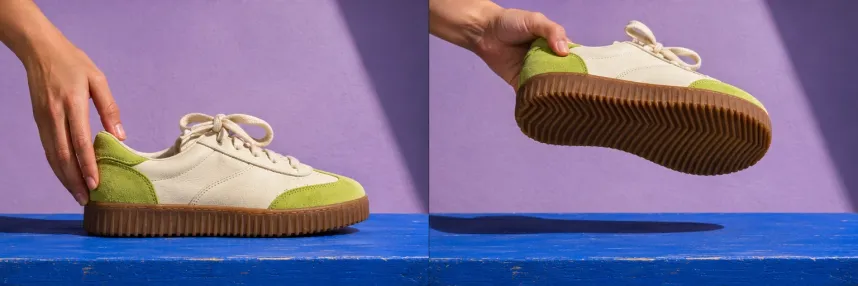
What to replace: the object, the action, and the final pose. Choose a first frame in which the hand and object have room to move.
Keep the description consistent with the starting image. If the bench is blue, asking for a red bench adds an appearance change alongside the lifting action.
A prompt describes the intended motion; inspect the generated clip to see what actually happened. See how to turn product photos into videos for more on planning movement from a product image.
3. Give each reference a specific job
When using several references, explain which features you want from each. Keep the same subject name throughout the prompt. BytePlus's Seedance 2.0 guide recommends explicit reference-to-subject relationships and consistent subject labels.
Reference example: the seller and the stall
Suppose you have a portrait of the seller in her green apron and a separate photo of an empty fruit stall. You want her face and apron from the portrait, but not its background. Neither photo has to be the first frame.
Use Image 1 for the seller's face and green apron.
Use Image 2 for the stall's pink counter and striped awning.
One orange rolls to the edge. The seller catches it with her right hand.
Keep the camera at counter height so her hand stays in view.
What to replace: the reference labels, the identifying feature, the location, and the action. "Image 1" and "Image 2" are explanatory labels here; use the attachment names or reference syntax supported by your platform.
If the portrait was taken in a kitchen, the kitchen isn't part of the brief. Assign the setting to the stall photo instead of asking the model to copy both photos in full.
For help choosing the assets themselves, see reference images for AI product video.
4. Separate a single camera move from a sequence of shots
For one shot, describe the framing and any camera movement. A fixed wide shot shows the subject within the setting; a tracking shot follows the subject as it moves. For a sequence, mark where you want to cut to a different view.
Sequence example: a coffee-making moment
Shot 1: A close-up of a barista pouring coffee into a turquoise ceramic cup.
The camera stays fixed as the cup fills.

Cut to Shot 2: A medium shot of the barista placing the cup on the counter
and sliding it toward a waiting customer.
Warm window light and the same turquoise cup connect the two shots.
What to replace: the activity, the two views, and the visual detail that connects them. Each shot should contribute something the other view does not show.
BytePlus cautions that precise per-shot timing can be unreliable. Use the sequence to describe order without treating a timestamp as guaranteed control. If exact cuts are essential, plan to assemble and time the shots in an editor. Our AI video storyboard guide covers planning the sequence before production.
Fix conflicting instructions before adding more detail
Read the prompt as if you were handing it to a camera operator. Look for instructions that ask for incompatible views or leave the subject ambiguous.
| Draft instruction | Why it is hard to interpret | A clearer version |
|---|---|---|
| "Keep the entire scene in a wide shot throughout. End in an extreme close-up of the face." | The framing is required to remain wide and end in a close-up | "Begin in a wide shot, then move into a close-up of the face." Or keep the wide shot throughout. |
| "She hands her the bag" | There are two people, but the action does not identify them | "The seller hands the bag of oranges to the customer." |
| "Make the scene dramatic and premium" | The words do not say what should change on screen | "Use a low side light, a dark background, and a slow push toward the subject." |
Review the result against the shot you asked for
Play the clip through and pause at the first moment it departs from your brief. What changed?
- Wrong subject or setting: check the reference assignments and the words used to identify each subject.
- Unclear action: check who performs the action, what moves, and where it ends.
- Unexpected framing: compare the requested view with the attached image and camera instruction.
- Too much happening: decide which action or shot you can remove without losing the idea.
Revise the instruction connected to the problem. If the wrong person receives the bag, name both people and state who gives it to whom. Save the wording alongside the next clip. One better take is worth keeping, but it doesn't tell you whether the change will work again.
Start with the example closest to your input, replace its subject and action, and check the reference mode in your editor. You can also visit our Seedance 2.0 page for related model information.
Source
Model-specific guidance on reference relationships, subject labels, and shot timing was checked against the BytePlus Seedance 2.0 prompt guide, accessed November 4, 2026. The prompt examples and editing exercises in this article are original.